

After you request a crypto withdrawal, you can follow its progress from multiple places in Roxom. This article explains where to see the status, what each state means, and how to track your transaction on the blockchain.Documentation Index
Fetch the complete documentation index at: https://docs.roxom.com/llms.txt
Use this file to discover all available pages before exploring further.
Where to check the status
There are three ways to check the status of your withdrawal:1. Recent withdrawals (Withdraw Crypto page)
Go to Assets → click Withdraw. At the bottom of the screen, you’ll see the Recent Withdrawals section with all your recent withdrawal activity.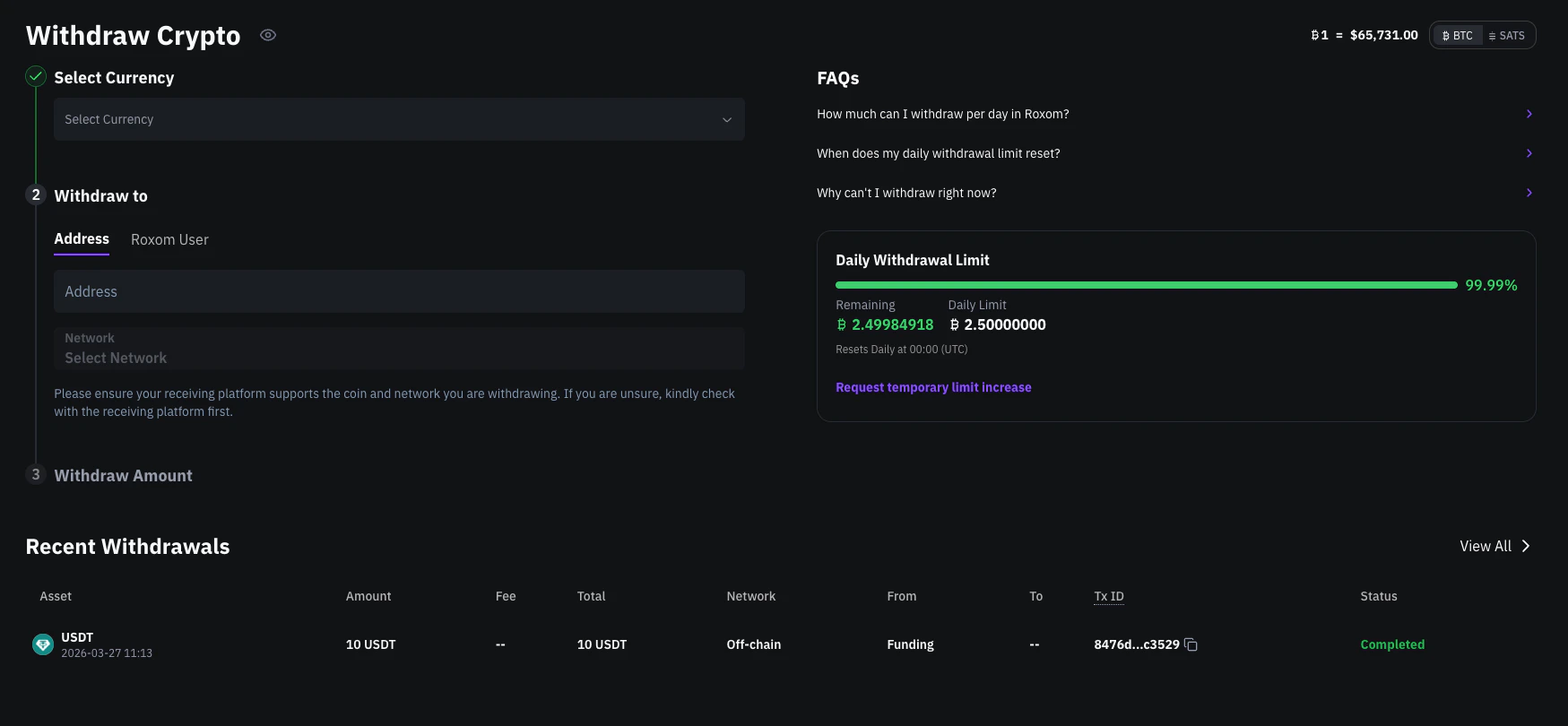
- Asset (BTC, USDC, or USDT)
- Amount, fee, and total
- Network
- From / To
- Transaction ID (TxID), if available
- Status of the transaction
2. Recent movements (Funding Account)
Go to your Funding Account and switch to the Recent Movements tab under Your Portfolio. This view shows all movements in your Funding Account — not just withdrawals, but also deposits and transfers.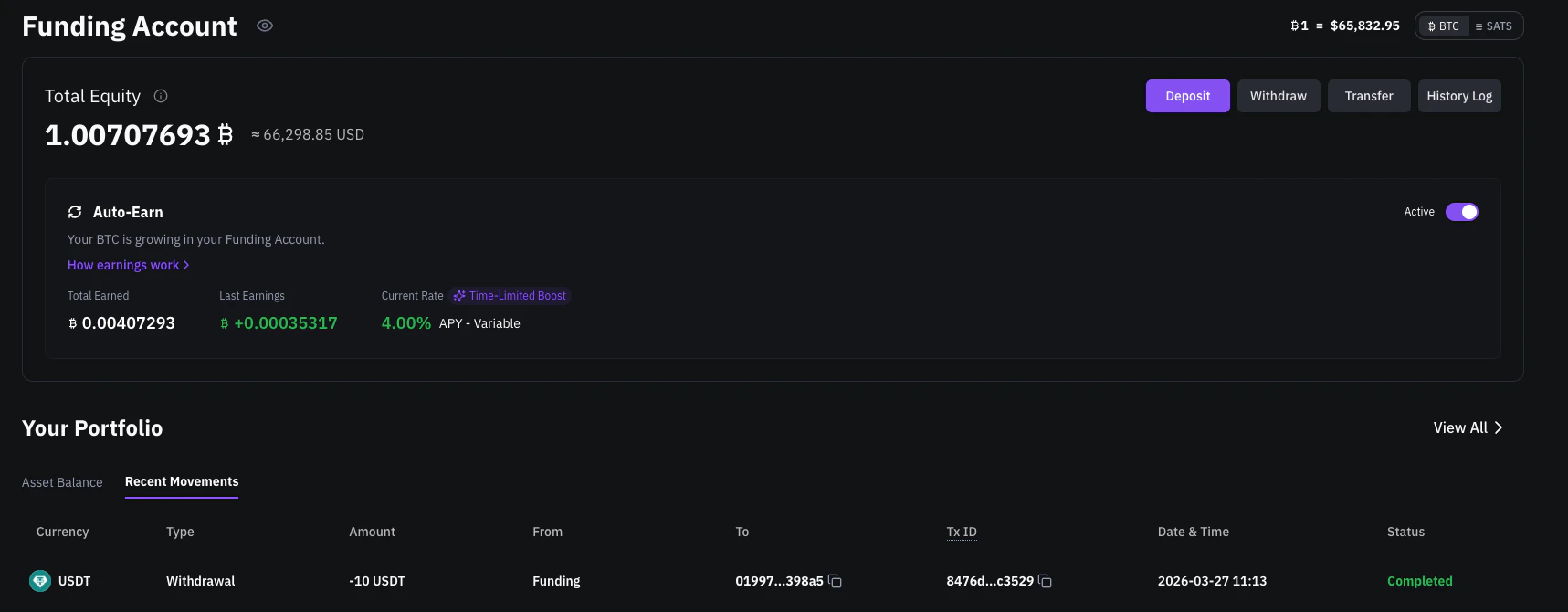
3. History Log
For a complete record of all account activity, go to your Funding Account and click the History Log button. This gives you a full transaction log across all types of movements.What each status means
| Status | What it means |
|---|---|
| Pending | The withdrawal is being processed internally and hasn’t yet reached the blockchain. It may be waiting for batching, validation, or confirmation from Fireblocks. |
| Completed | Your withdrawal was successfully processed and sent to the blockchain. You’ll see a TxID you can click to track the transaction. |
| Failed | The withdrawal could not be processed due to an internal error (e.g., balance, limits, system issues). No transaction was created. |
| Rejected | Your withdrawal was blocked due to high-risk activity detected by Roxom’s KYT system (e.g., interacting with flagged addresses). No transaction was created. You will be contacted via email to resolve the case. |
How to check your transaction on the blockchain
If the status is Completed, you’ll see a clickable TxID next to the withdrawal.- BTC withdrawals
- USDC / USDT withdrawals
Clicking the TxID opens a Bitcoin blockchain explorer (like mempool.space) where you can view confirmations, timestamps, and the recipient address.
Related articles
How to deposit crypto into your Roxom account
Open article
How to withdraw crypto from your Roxom account
Open article