

After completing a swap using One-Click Trade, you may want to verify where your assets appear and how to review related activity. This article explains where to find your tokenized assets, what each value means, and how to review activity generated by One-Click Trade swaps.Documentation Index
Fetch the complete documentation index at: https://docs.roxom.com/llms.txt
Use this file to discover all available pages before exploring further.
Where can I see my tokenized assets?
Once a swap is confirmed, your tokenized assets are credited immediately to your Unified Trading Account (UTA).How to view your assets
- Go to Your Portfolio
- Open the Assets tab
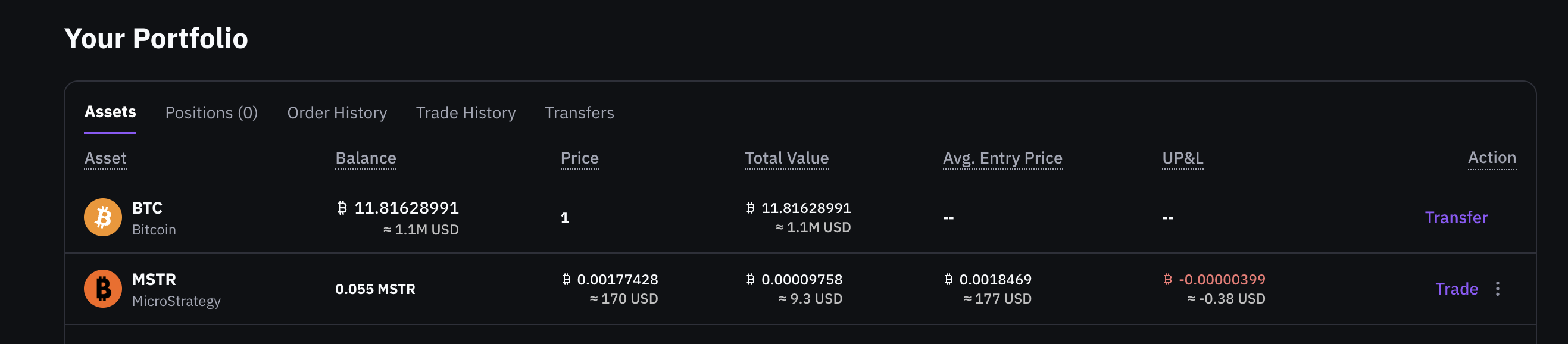
What information is displayed?
For each tokenized asset, the portfolio view shows:- Balance
The total number of tokenized shares you currently hold. - Price
The current market price of the asset, quoted in BTC (or SATS). - Total Value
The total value of your position, calculated as:
Balance × current market price. - UP&L (Unrealized P&L)
Your unrealized profit or loss based on the current price.
This value changes as the market price moves.
Where can I see my activity?
One-Click Trade swaps do not appear in the traditional Order History, since they are executed as instant swaps. To review activity related to a specific tokenized asset:- Go to Your Portfolio
- Open the Assets tab
- Locate the asset you want to review
- In the Action column, click the menu (three dots)
- Select View Full Details

Notifications
After each completed swap:- A confirmation appears in the Notification Center
- A confirmation email is sent to your registered email address
Key takeaways
- Tokenized assets appear instantly in UTA → Assets after a swap
- Portfolio values update automatically based on market prices
- One-Click Trade swaps do not appear in Order History
- Activity can be reviewed per asset via View Full Details
- Notifications and emails confirm each completed swap